
TABLE OF CONTENTS
Onboarding and Setup
1. Welcome to iglooworks
iglooworks is enterprise software (a web dashboard and mobile app) that allows large organisations to manage multi-tiered access to igloohome smart locks. Unlike the standard igloohome app, iglooworks supports multiple user accounts with different permission levels, making it suitable for organisations managing many users, properties, and locks.
Dashboard vs App
Dashboard (web): Manage properties, locks, users, access, and organisation settings. This guide covers the dashboard.
App (iglooworks mobile app): Pair locks, unlock via Bluetooth, sync activity logs, push jobs, and perform firmware updates.
2. Before You Begin
Use the Quickstart Setup Guide to set up your account and pair your first lock
Use Google Chrome for the best experience. The dashboard is optimised for it.
Your Organisation ID is shared by all users in your organisation. Share it with new users when they sign up.
3. Login
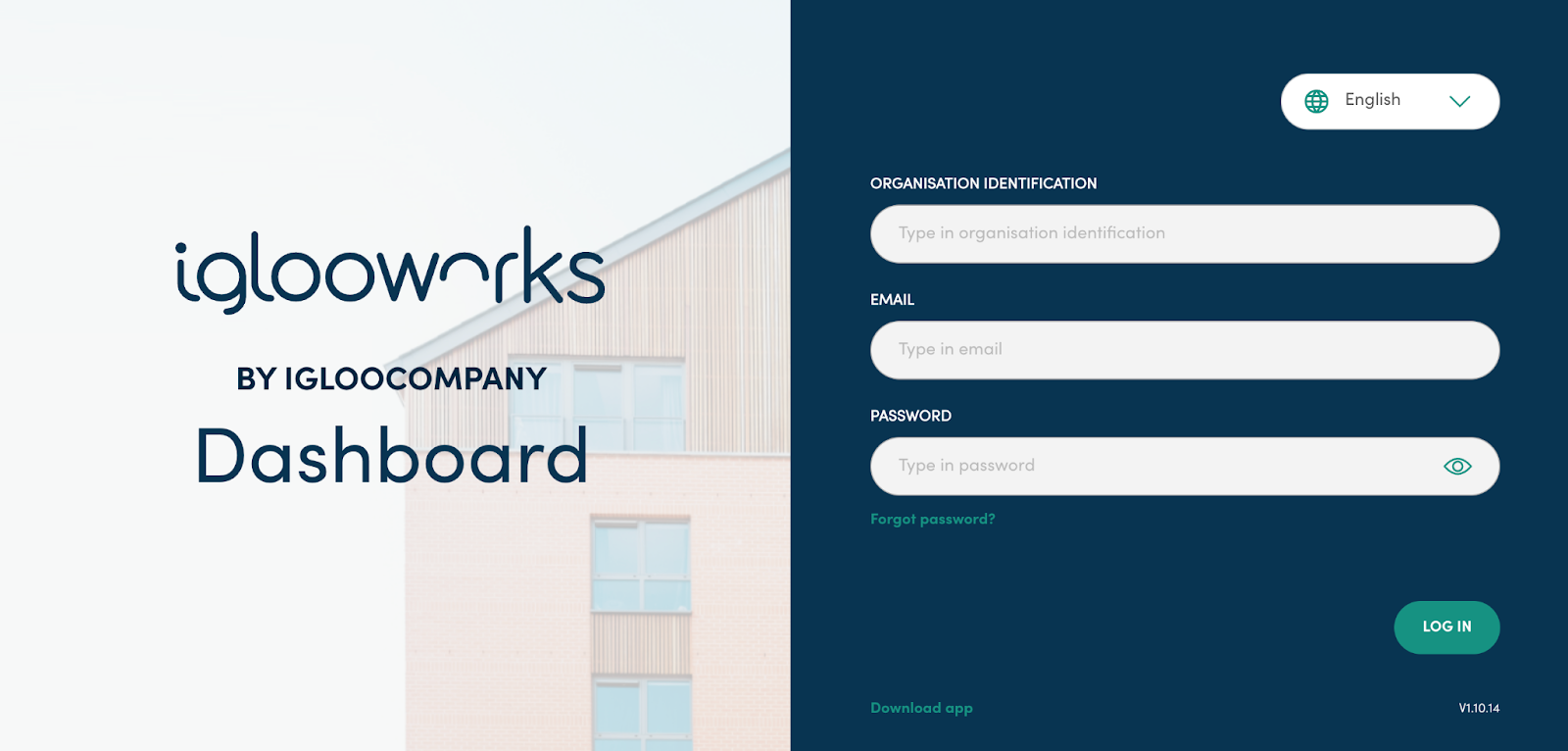
Enter your Organisation ID, email, and password
Click Log In
2FA Login
If 2-step verification has been enabled by your admin:
Enter your Organisation ID, email, and password as usual
Enter the OTP sent to your registered mobile number to verify
4. Key Concepts
4.1 Organisation Structure
Your iglooworks account is organised into a hierarchy:
Organisation → Departments (If available) → Properties → Locks → Users → Access
Organisation: The top-level account, managed by the Owner and Admins
Departments: Groups of properties with assigned Managers. Controls which Managers can access which properties (not available for Flat Organisation accounts without departments).
Properties: Groups of locks, typically organised by physical location or timezone
Locks: Physical smart locks paired to your account via the iglooworks app
Users: People with dashboard or app access, each assigned a role (Owner, Admin, Manager, or Lock User)
Access: Credentials that allow a user to unlock a lock, such as a PIN code or Bluetooth key
4.2 User Roles
- A user account does not need to be created just to give someone a temporary PIN. Only create users who need regular app access (e.g., Bluetooth unlock or sync). AlgoPINs can be generated without creating a user account.
4.3 Departments
Departments let you group properties and control which Managers can access them, without mixing access data between teams or locations.
Managers can only manage access for locks in the properties assigned to their department
Department data is not shared across departments. If a lock exists in two departments, access created in Department A is not visible in Department B.
Lock users must be individually invited into each department; they are not shared automatically
Owners and Admins have access to all departments by default and cannot be removed from any
Maximum of 20 departments per organisation
4.4 Flat Organisation
A Flat Organisation has no departments. All locks and users are managed directly under the organisation without any department segregation.
Recommended for simpler setups, as it is easier to manage than a department-based structure
Configured during account setup by your igloo representative
Cannot be changed after setup without creating a new account
5. Setting Up Your Organisation
For a brand new iglooworks account, follow this recommended setup order:
Step 1: Add Properties
Properties group your locks by location and set the timezone for paired locks. Create one property per physical site or timezone group before pairing any locks.
Step 2: Pair Locks
Use the iglooworks app to pair locks to your organisation. Once paired, associate each lock with its property.
Step 3: Create Departments (skip for Flat Organisation)
Decide which properties each Manager should oversee, then create departments accordingly. Assign properties and managers to each department.
Step 4: Invite Users
Invite Admins first, then Managers, then Lock Users. Assign Managers to their departments so they can log in and begin managing access.
Step 5: Create Access
Once users and locks are in place, create PIN codes or Bluetooth keys as needed. See Section 6.5 for full details.
Dashboard Pages
Here's a downloadable version: